


ACE Scanner - PDF Scanner App
4.41.09K Reviews
App Specs
- Version
- 1.4.9.128
- Updated On
- License
- Free
- Downloads
- 50,000,000+
- Developer
- QR Code Scanner.
- Categories
- Productivity
- Platform
- Android
Screenshots
 Analysis by AppCompare
When I need to turn a loose sheet of paper into something I can send or keep, I care less about a long feature list than about whether the scan becomes a usable PDF without fuss. That is the job I look to ACE Scanner - PDF Scanner App for: it focuses on capturing documents and photos as PDFs, a practical task when a physical page needs to move into a digital workflow.
That focus puts it in the productivity-app corner rather than making it a full document-editing suite. The developer is QR Code Scanner, and the app is free to install, with optional in-app purchases. Its audience rating is Everyone. I see its strongest appeal in quick, everyday paperwork: scanning a signed form, keeping a receipt, or sharing a page with someone who cannot collect the original.
A phone camera becomes a document tool
The important change is not that a phone can take a picture of a page; any camera can do that. It is that a scanner app is meant to turn the capture into a document you can send as a PDF. That format is more convenient than a loose photo when the recipient needs a page that reads like paperwork, or when you want to keep several pages together.
In practice, I would treat the result as a digital copy for ordinary reference and sharing, not automatically as a perfect substitute for every original. A clear, flat page in good light gives a phone camera the best chance of producing a readable result. A folded receipt, a glossy page, or faint printing calls for a quick check before I send anything important.
That small review step matters. A scan can look acceptable on the phone screen but reveal a cut-off corner or hard-to-read line when opened later. I make a habit of checking the edges and the smallest text while the paper is still beside me; rescanning then is much easier than asking someone to resend a document after I have already left.
Where it fits into a real day
Imagine receiving a paper form at an appointment and needing to return it before the end of the day. I can fill it in, open the scanner, capture the page, check that the important writing is visible, and share the resulting PDF. The useful part is the short route from paper to a file that can travel, rather than having to find a desktop scanner or send an awkward camera image.
The same approach suits students collecting a handout, freelancers keeping a paper receipt, or anyone who has to send a signed page while away from a computer. I would scan one-off documents as they arrive instead of letting them pile up. That makes the app most valuable as a small, on-demand tool, not as a reason to digitize every scrap of paper in the house.
Worth Reading Before You Choose

EA SPORTS FC Mobile 26 Is a Bigger Football Game, but It Takes Time

Flipboard Shows What News Apps Must Do Beyond the Feed

Switching to Android Auto Means Rethinking Your Driving Routine

Google Calendar Makes a Crowded Week Easier to Manage

Ludo King Makes the Most of the Minutes Between Plans

Baby Panda World Brings Quick Play to Modern Phones, but Its Game Library Feels Busy
For a stack of related pages, the decision is slightly different. Capturing them together can save interruptions, but I would still pause to check that the pages are in order and that none has been skipped. A single polished file is helpful only if it contains the right pages in a sensible sequence; speed alone does not make a scan ready to send.
Choosing it over a camera or a larger suite
The usual alternatives are taking a plain photo, using a scanner built into another app, or relying on a dedicated desktop device. A photo is fine when all I need is a quick visual reminder, but it is less convenient when I want a document-style PDF. A desktop scanner can be preferable for repeated office work or carefully controlled batches, while a phone app makes more sense when portability and immediacy matter.
ACE Scanner is therefore easiest to recommend when the task begins with paper and ends with a shareable PDF. If I already work entirely inside a broader office or cloud workflow, using the scan option there may keep everything in one place. If I need a precise archival process, a flatbed scanner and a deliberate file-management routine are safer choices than assuming a phone capture will meet every standard.
Before choosing a scanner app, I would ask myself what I actually need after capture. If the answer is “a PDF I can send or keep,” this app’s central purpose is a good match. If the answer is advanced editing, dependable long-term records, or a complex review process, I would compare dedicated document tools instead of expecting a simple scanning workflow to cover those needs.
Small habits that improve the result
I get more consistent scans by placing the page on a contrasting, uncluttered surface and keeping the phone steady above it. That is not a special feature; it is a practical way to make the page boundaries easier to see and reduce distracting background. I also check for shadows from my hand or the phone before capturing, especially near the bottom edge where text can be easy to miss.
For receipts and other narrow slips, I make sure the full strip is visible rather than filling the frame so tightly that an edge disappears. For a multi-page document, I keep the papers in order before I begin and review the finished file before sharing it. These little steps reduce the most common frustrations: missing corners, an unreadable section, and pages that have to be rearranged later.
There is also a useful distinction between a scan meant for quick reference and one meant to support a formal process. A personal copy of a receipt can tolerate an imperfect background; a document for a school, employer, or service provider deserves a closer check for legibility and completeness. I would follow the recipient’s requirements when a particular format or quality standard matters.
What to expect from the app
The app’s broad adoption suggests that this kind of phone-based scanning has a clear everyday audience: it has more than fifty million installs and an average rating of 4.5 from around 406,000 ratings. Those figures are useful context, but they do not tell me whether a particular scan will be good. Lighting, paper condition, camera steadiness, and checking the finished file still shape the result.
It first appeared on February 12, 2022, and version 1.4.5 is the current version. It supports Android 6.0 and later. That makes it relevant to people using a range of Android devices, though the experience naturally depends on the phone camera and screen they have. I would not judge scan quality from the app name alone; I would test it on the kinds of documents I expect to handle.
The free starting point lowers the barrier to trying it, but optional purchases range from $4.99 to $49.99 per item. I would check the in-app purchase details before paying and decide whether the extra cost makes sense for my own use. Someone scanning a page now and then may have little reason to spend; a person who relies on document capture often should weigh the paid options against the tools they already use.
As with any document app, I would be thoughtful about what I scan and where I send it. A personal receipt is different from paperwork containing sensitive details. Before sharing a PDF, I check the recipient and the file itself, and I avoid treating a convenient phone scan as a reason to distribute private information casually.
Who will get the most from it
I would point occasional scanners, students, people handling household paperwork, and mobile workers toward ACE Scanner when they want a straightforward way to make PDFs from paper or photos. It is particularly handy when a scanner is not nearby and waiting to get to one would slow down a simple task. The app’s value is less about replacing an office setup than about making an otherwise inconvenient moment manageable.
I would skip it, or at least compare alternatives, if scanning is part of a demanding daily records process, if every page must meet strict archival standards, or if I need a highly controlled workflow around editing and filing. It is also not the best answer when a quick photo is all that is needed; opening a dedicated scanner adds a step without much benefit in that case.
For me, the sensible test is to scan a representative page, inspect the PDF at a useful size, and try the sharing route I expect to use. If the result is readable and fits the way I handle paperwork, the app can earn a place on my phone. If I have to repeatedly correct captures or move files through a separate system, a scanner already built into my preferred workflow may be the better choice.
Getting Started with ACE Scanner
First things first, downloading and setting up ACE Scanner is a breeze. Available for both Android and iOS, you can grab it from your respective app store and get started in no time. Once you have it installed, you’re greeted with a clean, intuitive interface that doesn’t overwhelm you with too many buttons or options. Simplicity is key here, and I’m all for it!
Scan Like a Pro
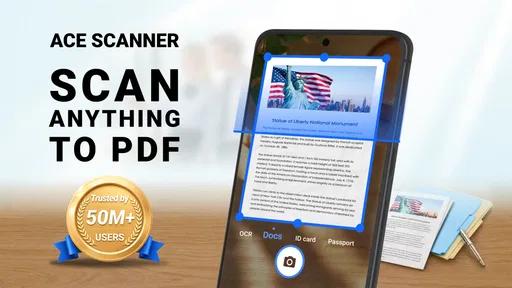
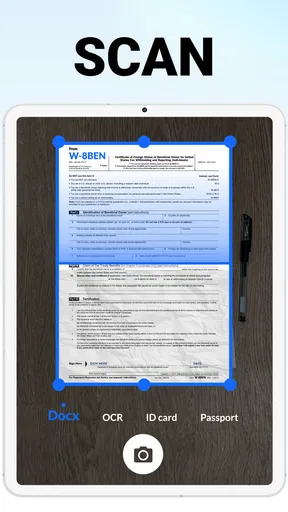
The main feature of this app is, of course, its scanning capability. You simply open the app, hit the scan button, and let your phone’s camera do the magic. The app automatically detects the edges of the document and adjusts the lighting to make sure your scan comes out crystal clear. It’s like having a portable scanner in your pocket, and the quality is surprisingly good.
Whether it’s a receipt, a contract, or that random flyer you picked up, ACE Scanner handles it all. It can even scan multi-page documents without breaking a sweat. The app guides you through each step, making the whole process super smooth.
Organize and Share Effortlessly
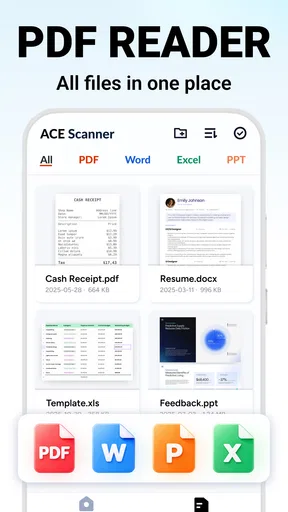
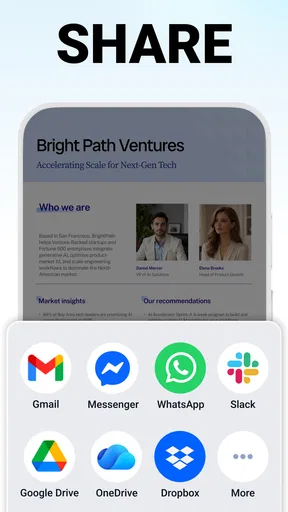
Once you’ve scanned your documents, what’s next? The app makes organizing your files a piece of cake. You can create folders, rename files, and even tag them for easy searching later on. And when it comes to sharing, ACE Scanner has you covered there too. You can email your PDFs directly from the app or upload them to cloud services like Google Drive and Dropbox. It’s all about making life easier, right?
Additional Features to Love
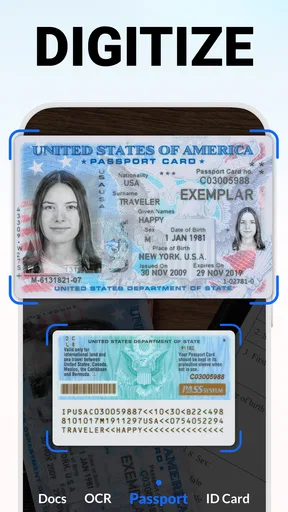
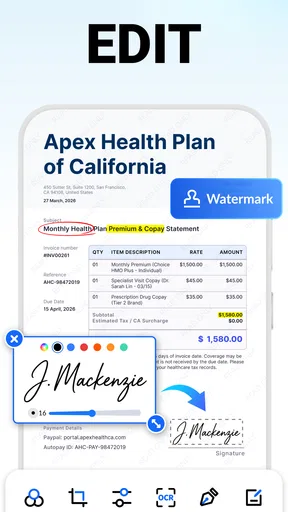
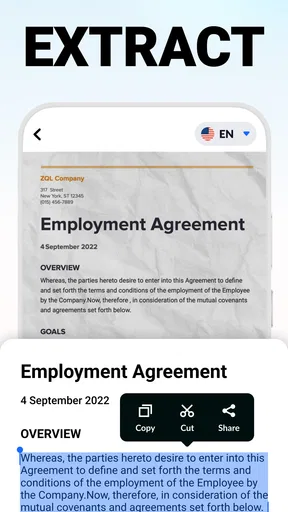
Now, let’s talk about some of the extra goodies this app offers. One feature I found particularly neat is the OCR (Optical Character Recognition). This allows you to extract text from your scanned documents. So, if you need to copy a part of the text from a document, you don’t have to manually type it out. The app does it for you, which is a real time-saver.
There’s also a batch scanning option, perfect for those days when you have a stack of papers to digitize. And if you’re concerned about privacy, the app includes a password protection feature. You can lock your documents so only you have access to them. It’s little things like these that really make the app stand out.
Wrapping It Up
All in all, ACE Scanner - PDF Scanner App is a fantastic tool for anyone looking to streamline their document management process. It’s user-friendly, packed with useful features, and most importantly, it gets the job done efficiently. Whether you’re a student, a professional, or just someone who likes to keep their paperwork in check, this app is worth checking out.
So, if you’re ready to turn your phone into a portable scanner and make your life a tad bit easier, give ACE Scanner a try. You might just wonder how you ever managed without it!
Pros
- Fast and high-quality scanning.
- Easy-to-use interface.
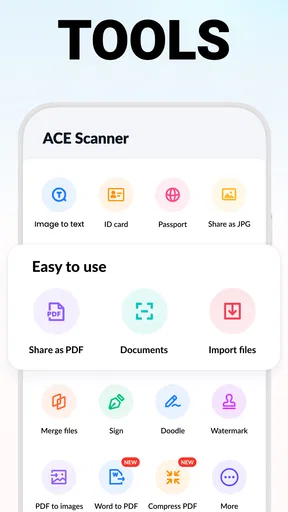
- Supports multiple file formats.
- Includes OCR technology.
- Secure document storage.
Cons
- Limited free version features.
- Ads can be intrusive.
- No batch processing option.
- Requires internet for some features.
- Occasional app crashes.
FAQs for ACE Scanner - PDF Scanner App
What platforms is ACE Scanner - PDF Scanner App available on?
ACE Scanner is available for both Android and iOS platforms. Users can download it from the Google Play Store or the Apple App Store, ensuring compatibility with a wide range of mobile devices. The app is designed to work seamlessly across different operating systems, offering consistent features and performance.
Is ACE Scanner free to use, or are there any in-app purchases?
ACE Scanner offers a free version with essential features. However, to access advanced functionalities like unlimited scans, cloud storage, and ad-free experience, users can opt for in-app purchases or a subscription plan. This flexibility allows users to choose a plan that best suits their needs.
How does ACE Scanner ensure the privacy of scanned documents?
Privacy is a top priority for ACE Scanner. The app does not store any scanned documents on its servers, ensuring that all data remains on the user’s device. Additionally, it offers encryption features to protect sensitive information, giving users peace of mind regarding their document security.
Can ACE Scanner convert scanned documents into editable text?
Yes, ACE Scanner includes an Optical Character Recognition (OCR) feature that allows users to convert scanned images into editable text. This functionality supports multiple languages and is highly accurate, making it easier for users to digitize and edit documents efficiently.
What file formats does ACE Scanner support for saving scanned documents?
ACE Scanner supports a variety of file formats, including PDF and JPEG. Users can choose the format that best suits their needs, whether they require high-quality images or compact file sizes for easy sharing. The app also allows for easy export to email or cloud storage services.


